
In the world of online advertising, what matters more than clicks is results. You might run ads and get people clicking through to your website, but how do you really know whether those visitors are buying a product, signing up for a newsletter, or completing an action you care about? That is where conversion tracking comes in. Conversion tracking tells you which of your ads actually lead to meaningful results.
Google provides powerful tools for tracking conversions, and one of the key parts of that system is the Google Search tag (often simply called a Google tag or the older global site tag / gtag.js). This blog will walk you through what it is, why you need it, and how to implement it so you can track conversions accurately on your website.
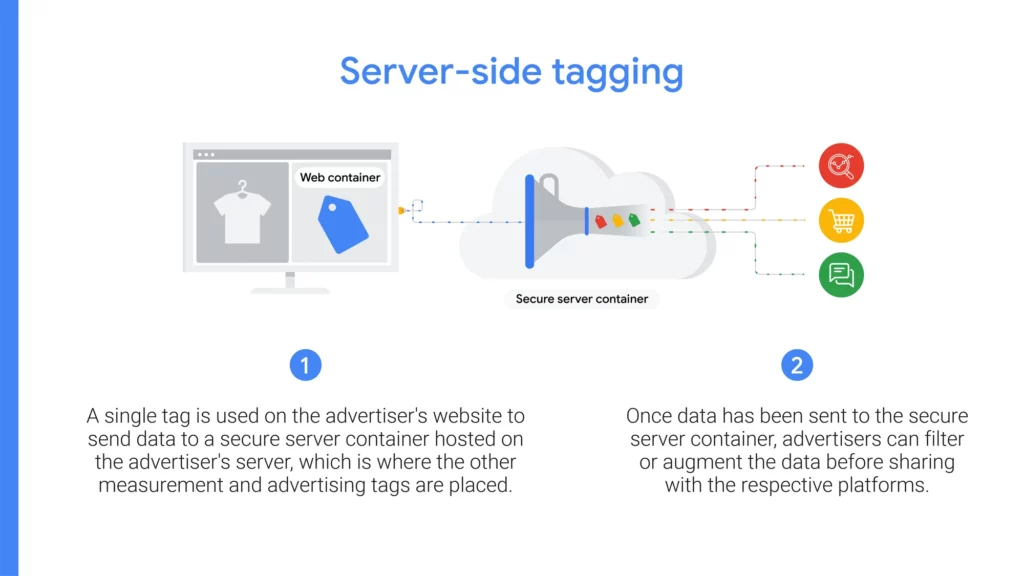 |
| Google Search Tag Implementation for Conversion Tracking? |
What Is Conversion Tracking?
Before we talk about tags, let’s first understand conversion tracking itself.
A conversion is any action that matters to your business. It might be:
- A sale
- A form submission
- A newsletter signup
- A phone call from your ad
- Downloading a PDF or brochure
When someone completes one of these actions after clicking your ad, Google calls that a conversion. Conversion tracking lets you measure these events so you can understand how well your ads are performing. It gives you insight not just into clicks, but into value. Without tracking, you might be spending money without knowing what impact your ads really have.
To measure these conversions, Google uses a piece of code — a tag — that you add to your website.
What Is the Google Search Tag?
The Google Search tag is a snippet of JavaScript code that you install on your website to track conversions, page views, and other user interactions. It’s often called the Google tag and is an evolution of what used to be called the global site tag (gtag.js).
In simple terms, the tag works like a tiny messenger. When a visitor lands on your site, the tag collects certain information about how they interact with your pages. If the visitor later completes a conversion (like making a purchase or signing up), the tag reports that back to Google Ads for reporting and analysis.
Here’s what the Google tag does:
- Collects data across your entire site
- Communicates that data to Google Ads and other Google products
- Helps Google match ad clicks to conversions
- Enables enhanced features like enhanced conversions (optional improvement)
Why You Should Implement the Google Search Tag
You might ask: Do I really need this tag? The answer is yes if you want accurate conversion data.
Here’s why the Google Search tag matters:
- Accurate measurement: It links ad clicks to conversions, helping you see which ads are driving real results.
- Better optimization: With conversion data, Google Ads can optimize your campaigns based on what actions people actually take.
- Unified tracking: The Google tag lets you send data to multiple products (Google Analytics, Google Ads) from one code snippet.
- Enhanced conversions: You can optionally send hashed customer data (like email) to improve conversion match rates.
Without the tag, Google will have less data about what happens after someone clicks your ad, and this can lead to mis-estimating your return on ad spend (ROAS).
Where to Put the Tag
The Google Search tag needs to be placed in the head section of your website’s HTML. This ensures it loads early and can begin tracking as soon as the visitor arrives.
Here is what a typical tag looks like:
<!-- Google tag (gtag.js) - Google Ads -->
<script async src="https://www.googletagmanager.com/gtag/js?id=AW-XXXXXXXXXX"></script>
<script>
  window.dataLayer = window.dataLayer || [];
  function gtag(){dataLayer.push(arguments);}
  gtag('js', new Date());
  gtag('config', 'AW-XXXXXXXXXX');
</script>
AW-XXXXXXXXXXis your unique conversion ID. You get this from your Google Ads account when you create a conversion action.- This tag should appear on all pages of your site so that Google can track visitors anywhere they go.
Implementing Conversion Tracking
Once the Google tag is on your site, you still need to tell Google what counts as a conversion. This is done through conversion actions in your Google Ads account.
Step 1: Create a Conversion Action in Google Ads
Go to your Google Ads dashboard and find the Conversions section. Click New conversion action. Choose the type of conversion you want to track (website, phone calls, app installs, etc.).
In this process, Google will show you the conversion ID and conversion label to use.
Step 2: Add the Google Tag Code
Add the Google tag code (shown above) to the <head> section of your website. If you already have Google Analytics tags installed, you can often merge them into one tag using your Google Ads ID.
Step 3: Add an Event Snippet
For conversions that happen after an action (like a purchase), you also add an event snippet on the specific conversion page (example: thank-you page) or at the click event that signals a conversion.
This event snippet might look like:
<script>
  gtag('event', 'conversion', {
    'send_to': 'AW-XXXXXXXXXX/label123',
    'value': 1.0,
    'currency': 'USD'
  });
</script>
This tells Google: Hey, this visitor just completed a conversion! Then Google logs it in your reports.
Step 4: Verify the Tag
Use tools like Google’s Tag Assistant or built-in debugging options to make sure the tag is firing correctly on your site. You might need to check that the tag appears on every page and that the event snippet triggers when expected.
Using Google Tag Manager (GTM) Instead
If you don’t want to edit your website’s code directly, you can use Google Tag Manager (GTM). GTM lets you manage all tags from a visual dashboard and deploy them without touching site code every time.
With GTM you:
- Add the GTM container code to your site once.
- Then add or edit tags through GTM’s interface.
- Create triggers to tell the tag when to fire (e.g., on page view or button click).
- Publish changes whenever needed.
Inside GTM, you can add:
- A Conversion Linker tag that helps cookies work properly.
- A Google Ads Conversion Tracking tag with your conversion ID and label.
- Triggers to say when to fire the conversion tag (for example, when someone reaches the thank-you page).
Using GTM simplifies tag management, but you still need to know which events matter to your business.
Enhanced Conversions for Better Accuracy (Optional)
Google also offers enhanced conversions, a feature that improves tracking accuracy by using hashed customer data such as email or phone number (hashed for privacy). This allows Google to better match conversion activity to signed-in users and can improve how accurately conversions are counted.
This is optional but recommended if you want more precise reporting and optimization.
Common Problems and Tips
Conversion tracking often works smoothly, but here are some issues people run into:
- Tag not firing: If the tag isn’t placed correctly or on every page, conversions may not be tracked. Always verify.
- Incorrect placement of event snippet: Event snippets must be on the right page or attached to the correct event trigger.
- Conversion delay: It can take up to 24 hours for Google Ads to show conversion data in reports after setup.
Also, if you are tracking multiple conversion actions (like purchases and signups), check your triggers to ensure they are all firing properly.
Why Conversion Tracking Matters for Search Ads
Search ads are one of the most powerful ways to reach people actively looking for what you offer. But without conversion tracking, you might measure the success of these campaigns with guesses instead of facts.
By implementing the Google Search tag:
- You know which keywords and ads drive real results.
- You can calculate return on ad spend (ROAS).
- You can optimize your budget toward campaigns that actually convert.
- You collect data that feeds machine learning algorithms in Google Ads to improve bidding and targeting.
In short, conversion tracking turns your ad data into actionable insights.
Conclusion
The Google Search tag is an essential piece of the puzzle when it comes to measuring your online advertising success. It tells you not just how many people clicked your ads, but how many completed meaningful actions that bring value to your business.
By installing the Google tag, configuring conversion actions, and verifying through tools like Google Tag Manager or Tag Assistant, you can unlock powerful insights into your campaigns. Whether you’re selling products, collecting leads, or driving engagement, accurate conversion tracking helps you make smarter decisions with your advertising budget.
Conversion tracking transforms clicks into clarity, revealing which marketing efforts truly work.
Related Questions & Answers
What is Google Search tag implementation for conversion tracking?
Google Search tag implementation is the process of adding a Google tag to your website to measure actions users take after clicking Google Search ads. It helps track conversions like purchases, sign-ups, or form submissions, enabling advertisers to evaluate campaign performance accurately.
Why is conversion tracking important for Google Search ads?
Conversion tracking shows which keywords, ads, and campaigns drive valuable actions. Without it, advertisers only see clicks, not results. Proper tracking allows better budget allocation, smarter bidding strategies, and data-driven decisions that improve return on ad spend over time.
What is the Google tag and how does it work?
The Google tag is a single piece of code placed on your website. It collects interaction data and sends it to Google Ads or Analytics. When a user completes a defined action, the tag records it as a conversion linked to the original ad click.
Where should the Google Search conversion tag be installed?
The base Google tag should be placed in the global header of all pages. The conversion event snippet is added to the specific conversion page, such as a thank-you or order confirmation page. Correct placement ensures conversions are tracked only when actions are completed.
Can Google Tag Manager be used for Search conversion tracking?
Yes, Google Tag Manager simplifies implementation by managing tags without editing code repeatedly. You can deploy Google Ads conversion tags, triggers, and variables from a single interface. This reduces errors, improves flexibility, and allows faster updates compared to manual code installation.
What types of conversions can be tracked using Google Search tags?
You can track website actions like purchases, leads, phone calls, app installs, and sign-ups. Custom events such as button clicks or form submissions can also be measured. This flexibility helps businesses align conversion tracking with specific marketing goals.
How do you verify if conversion tracking is working correctly?
Verification can be done using Google Ads diagnostics, Google Tag Assistant, or real-time conversion testing. After setup, test conversions by completing the tracked action yourself. Successful firing confirms the tag is sending data accurately to Google Ads.
What are common mistakes in Google Search tag implementation?
Common mistakes include duplicate tags, incorrect placement, missing conversion IDs, or firing conversions on page load instead of completion. These errors can inflate or underreport conversions, leading to poor optimization decisions and inaccurate performance analysis.
How does conversion tracking affect smart bidding strategies?
Smart bidding relies on conversion data to optimize bids automatically. Accurate Google Search tag implementation provides reliable signals, allowing algorithms to target users more likely to convert. Poor tracking data can negatively impact automated bidding performance and efficiency.
Is Google Search conversion tracking compliant with privacy regulations?
Google supports privacy compliance through consent mode and data controls. Advertisers must inform users, obtain consent where required, and configure tags accordingly. Proper setup ensures conversion tracking respects user privacy while still providing valuable performance insights.
